Factory manual / Early Access • V16.4 rules
Read the current order, load its goods and complete the delivery
Go to the order sheet beside the Dispatch bay and press E to open the Contract Book. Select the current order marked ON THE TRUCK, read WANTS and pin it to your screen. Send those exact goods to the lorry by belt or an eligible Depot Drone. Check each item’s progress and the payment as it is loaded; on V15.4 and later the 25% order bonus arrives with the deliveries. An Order complete message and the next order confirm that you have advanced.
Updated 2026-11-17 · Early Access • V16.4 rules
On this page
Follow the route
Open the current order at Dispatch
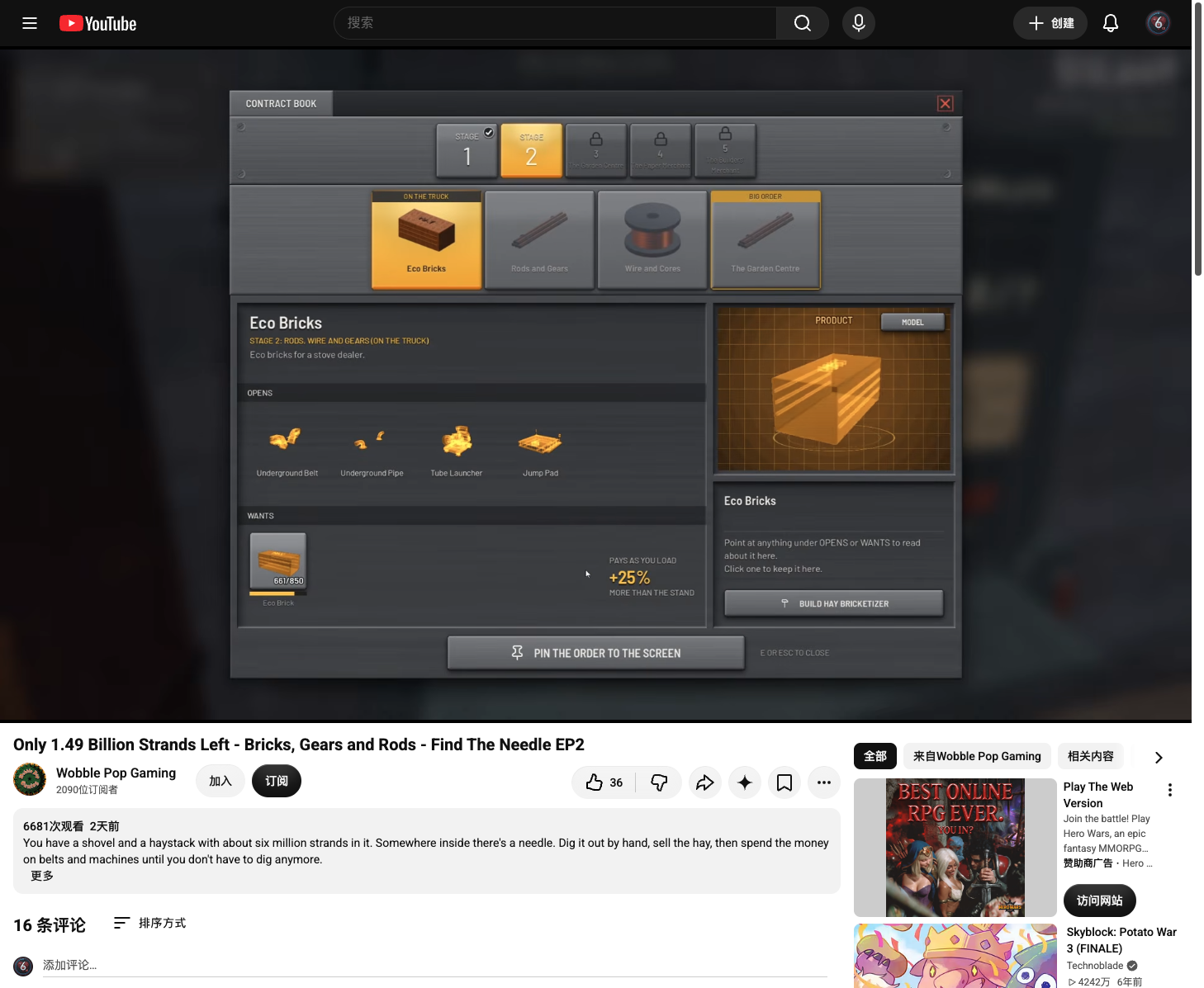
The order sheet stands beside the large Dispatch bay door, next to the needle cabinet. Walk up and press E at OPEN THE ORDERS. In the Contract Book, choose the order marked ON THE TRUCK. Other cards let you inspect future orders and unlocks; looking at one does not change what the current lorry needs.
 Open full-size image ↗
Select ON THE TRUCK for the current delivery. Wobble Pop Gaming, EA V15.4 at 41:00; the selected order is this save’s example. Read WANTS, then pin the order
WANTS gives the exact product names and separate quantities. Use PIN THE ORDER TO THE SCREEN to keep the task visible while building. OPENS shows the machines or stage that completing this order will unlock. Point at an item in WANTS or OPENS to inspect its description; the book can also offer a button for the machine that makes a selected product.
Open full-size image ↗WANTS names the goods and shows loaded / required. EA V15.4 example: read the counts in your current save. Open full-size image ↗OPENS lists what the order unlocks. This V15.4 Eco Bricks example shows an Underground Belt. Open full-size image ↗Pin the order here to keep it visible while building. EA V15.4 Contract Book. Make the goods the current lorry accepts
For the first order, feed hay into a Compressor to make bales, then route those bales into the lorry at the Dispatch bay. The truck arrives when you make your first bale. Later, use the named product and counts on the current sheet: a Wrapped Bale and an ordinary bale are different goods. Keep the final needle scanner before a finished-product branch to delivery or sale.
Keep useful goods moving to the truck
A T Junction can divide bales between the truck and another destination. When using a Depot, stock the matching item and set its DRONES control to TAKE so an eligible Depot Drone can carry it. Reserve a building material with LEAVE when needed. If the lorry needs two products, watch the remaining quantity for each rather than treating one full line as a finished order.
Check the payment while loading
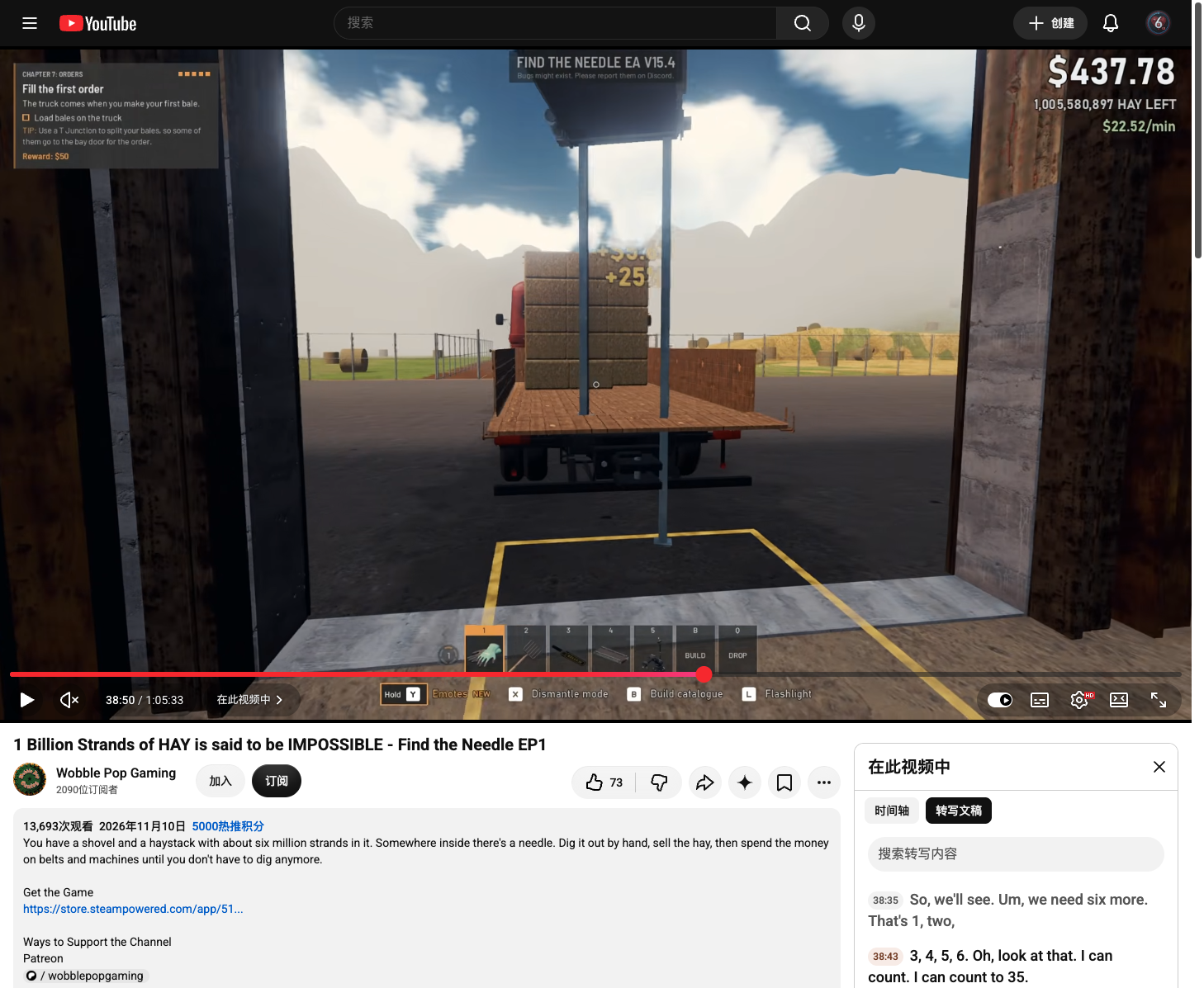
V15.4 pays as the lorry is loaded, including the 25% bonus with each delivery. Watch the +$ and bonus at the truck and the corresponding WANTS quantity rise. You do not have to finish the whole order before receiving that payment. V16.4 also counts lorry income in $/min and best minute.
 Open full-size image ↗
Wobble Pop Gaming, EA V15.4 at 38:50. The floating cash is for this delivery, not a fixed payment for every bale. Confirm completion and follow the next order
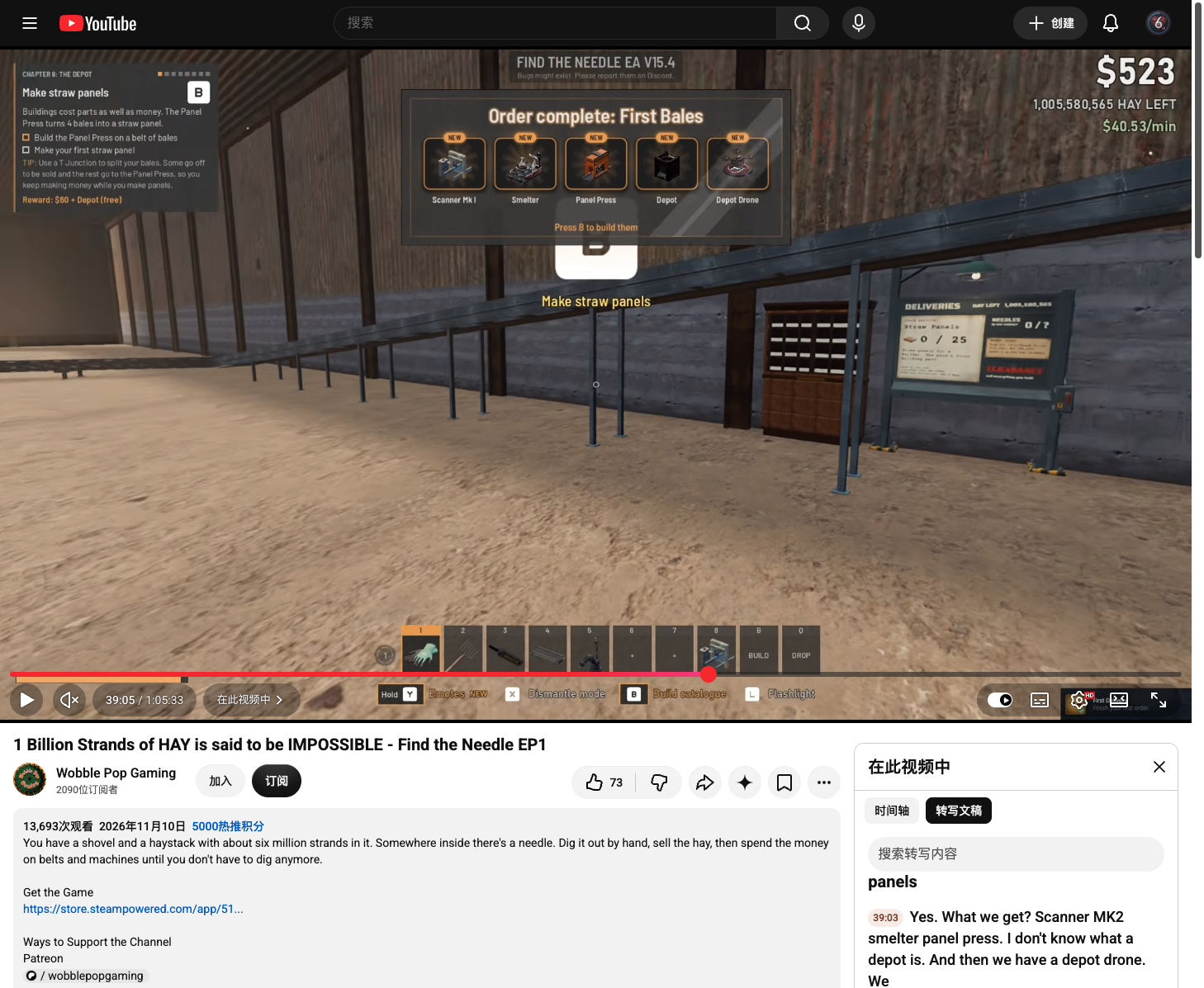
In the recorded first-order example, loading the final bales produces Order complete: First Bales, reveals the new machines and changes the sheet to Straw Panels. Open the book again to read the new WANTS before changing production. The book has 16 orders across five stages. Stage-closing customers open the next stage, and no pile size requires needle finds to unlock its bigger orders.
 Open full-size image ↗
Wobble Pop Gaming, EA V15.4 at 39:05. The completion message is the important signal; the revealed cards are this order’s unlocks.
Completion check
Check the result
Every required item is satisfied, the game confirms Order complete, and the next order or stage is available. Each loaded delivery has paid along the way.
If it still fails
If the counter does not rise, check the exact item, whether that order is ON THE TRUCK, the remaining quantity and the belt route. With Depot Drones, also check stock, TAKE/LEAVE, power and access. If the line is full, stop sending that item and supply the one still missing.
Continue from here
Sources & version
Written for Early Access V16.4. Earlier gameplay images are labeled where used; diagrams explain connections, not exact building dimensions or measured throughput.