Factory manual / Early Access • V16.4 rules
Keep useful stock while drones supply the current order
Feed scanned products into a Depot, aim at it and press E (OPEN THE DEPOT), then choose an item in its inventory. Buy Shelf Limits to unlock each item’s KEEP UP TO cap. Set DRONES to TAKE when you want that item delivered to the current order, or LEAVE to reserve it. Give surplus an outfeed belt. Before adding drones, check the order still needs the exact stocked item and the drone’s power and approach are clear.
Updated 2026-11-17 · Early Access • V16.4 rules
On this page
Follow the route
Connect storage after the scan
The first Depot comes with the Panel Press. The Depot Drone unlocks at First Bales; the tutorial gives your first one free during Straw Panels. Put the Depot downstream of the finished-product scanner. Connect an outfeed to the stand or another intended destination so rejected or excess goods can continue.
 Open full-size image ↗
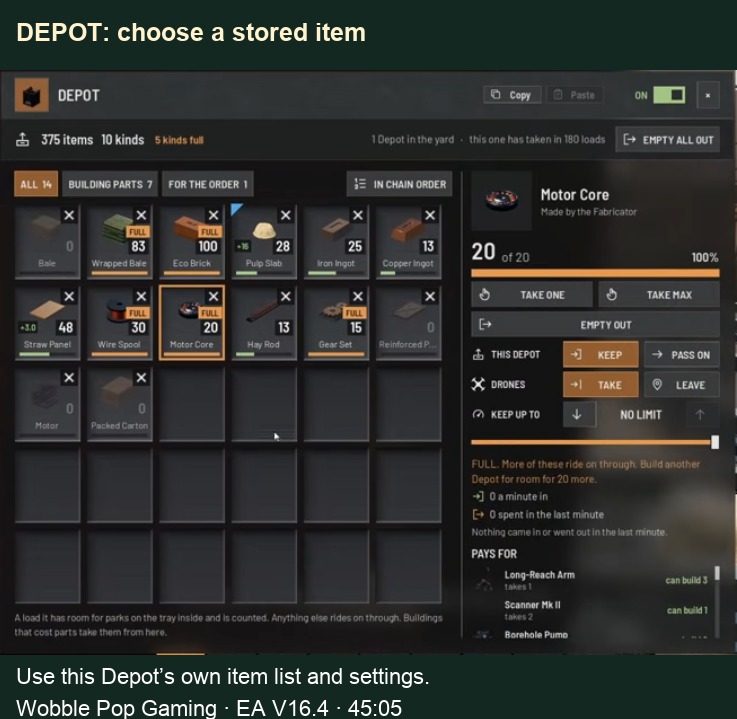
Wobble Pop Gaming, EA V16.4 at 45:05. Select an item tile to display its own controls. Choose keep, pass and a useful cap
Aim at the Depot and press E at OPEN THE DEPOT. Select the item tile. Each Depot has its own list and settings. Under THIS DEPOT choose KEEP to hold it or PASS ON to let it continue; use KEEP UP TO for the desired reserve. The cap is locked until Shelf Limits is purchased. Use the live order quantity and your building needs to choose a cap; there is no single cap that fits every order.
 Open full-size image ↗
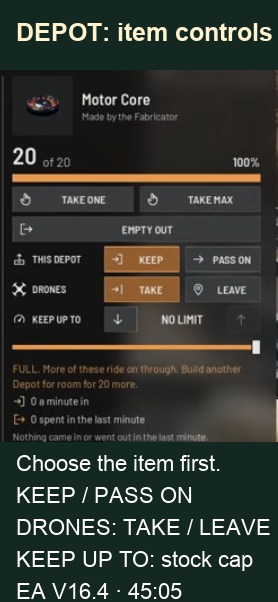
Wobble Pop Gaming, EA V16.4 at 45:05. TAKE permits delivery; LEAVE reserves the selected stock. Allow or reserve drone stock
For the selected item, set DRONES to TAKE for matching order deliveries, or LEAVE to keep it in that Depot. Set materials reserved for a build to LEAVE and the goods you want the lorry to receive to TAKE. A full shelf is not evidence that the current order wants its contents.
Place the drone and check the order
Use the free tutorial drone once the Depot contains eligible stock. Confirm a current order needs that exact item, connect the drone’s power and leave the approach clear. Watch a flight deliver goods and the relevant order quantity rise. Orders pay as the truck is loaded on V15.4 and later; you do not have to wait for the entire order to receive that delivery’s payment.
Upgrade for the delivery bottleneck you can see
Mk I carries 3 loads, Mk II carries 6 and Mk III carries 12 per trip on V15.4 rules. Mk II opens at The Garden Centre, Mk III at The Paper Merchant. In V16.4 Mk I unloads at the doorway; Mk II and III with an open roof can cross the wall and drop directly into the lorry. Check doorway waiting before buying another drone.
Depot Drone tiers Tier Loads per trip Delivery access on V16.4 Mk I 3 Doorway unloading Mk II 6 Can cross the wall under an open roof Mk III 12 Can cross the wall under an open roof Use the stock controls for a stage change
TAKE ONE and TAKE MAX remove goods by hand. EMPTY OUT sends an item type back onto the belt; emptying the whole Depot releases everything. Make sure the outfeed leads somewhere useful before flushing stock. After placing a blueprint containing a Depot, inspect its list, caps and drone controls again; a blueprint is not a promise to duplicate stored inventory.
Diagnose an idle drone before adding more
Check the order is not already full, the exact matching item exists, its DRONES control is set to TAKE, and power is available. V16.4 drones complete order lines they can finish first and stop sending stock to full orders. If several drones wait at the doorway, solve access or upgrade the tier instead of increasing the queue.
Completion check
Check the result
The Depot holds the intended reserve, surplus follows its outfeed, and enabled order stock reaches the lorry while the corresponding order counter increases.
If it still fails
Floor piles beside the Depot usually mean it cannot keep an item and has no outfeed: connect one or revise the keep/cap setting. For a full Depot and idle drone, check item eligibility, DRONES controls set to LEAVE and the order’s remaining quantity before changing production.
Continue from here
Sources & version
Written for Early Access V16.4. Earlier gameplay images are labeled where used; diagrams explain connections, not exact building dimensions or measured throughput.