Factory manual / Early Access • V16.4 rules
Dismantle the right part and recover an accidental removal
Press X at the Dismantle Mode prompt and aim at the part you intend to remove. Read the highlighted target and refund before holding. On V16.4 a hold on a blueprint piece removes that piece; press R first if you want the whole blueprint. If you remove the wrong part, use Ctrl+Z in Dismantle Mode immediately. It can restore the last 20 things you took down. Check the returned part’s belts and utilities before restarting the line.
Updated 2026-11-17 · Early Access • V16.4 rules
On this page
Follow the route
Enter Dismantle Mode and read its target
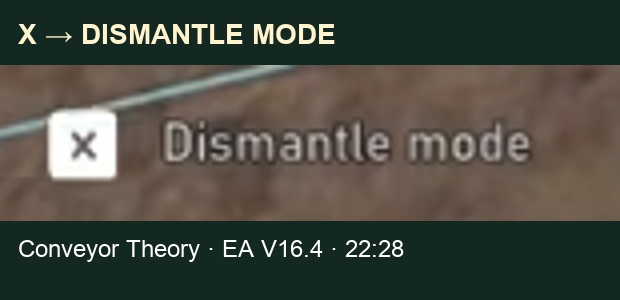
Use the X Dismantle Mode control shown in the build controls. Point at the intended machine, belt or blueprint piece. The Needle Hammer shows the refund before removal. Read that preview together with the highlighted object; a nearby belt or floor tile is a different target.
 Open full-size image ↗
Conveyor Theory, EA V16.4 at 22:28. This crop identifies the mode entry; it does not depict a completed dismantle. Remove just the intended piece
In V16.4, aiming at a blueprint piece and holding takes that piece again. Read the pointer’s one-piece or whole-blueprint description before committing. Older V15.4 footage used whole-blueprint selection by default, so do not copy that older default into a current removal.
Choose the whole blueprint deliberately
Press R to switch to the whole blueprint when that is the intended target. Verify the description changed to the entire arrangement, check its refund, then hold to dismantle it. The mode supports marking up to 50 buildings; keep the selection within what you actually intend to remove.
V16.4 target and recovery controls Goal Action Enter Dismantle Mode Use the X Dismantle mode control. Remove one blueprint piece Aim at the piece, verify the one-piece target, then hold. Remove the whole blueprint Press R, verify the whole-blueprint target, then hold. Restore recent removals Ctrl+Z in Dismantle Mode, up to the last 20 things removed. Undo the mistaken removal immediately
Stay in Dismantle Mode and press Ctrl+Z to put the last removed thing back. Repeat only as far back as needed, within the 20-item history. Stop other demolition while recovering: the useful target is the recent removal you are trying to reverse. V16.4 also fixes undo failing after a refused dismantle.
Check the route after the part returns
Follow the repaired section from input to output. Check the adjoining belt arrows, the machine’s power line and any water pipe, then watch a load reach the next machine. If the restored part is a final scanner, check that no destination branch bypasses it. A part appearing again is the start of the recovery check, not proof that the entire route is running.
Treat a blueprint tile’s X as a separate action
The keyboard X enters Dismantle Mode. The clickable X on a blueprint tile opens a separate confirmation: read the dialog before accepting it. To restore a machine or belt you just dismantled, stay in Dismantle Mode and press Ctrl+Z.
Handle a blocked dismantle without clearing unrelated parts
Read the obstruction named by the game before removing neighbouring structures. V16.4 fixes a blueprint pad laid partly over a platform, or with a tile on its corner, being impossible to take down. On an older save, update before repeating that workaround. Keep the current highlighted target visible as you retry.
Completion check
Check the result
Only the intended piece or whole blueprint is removed. An accidental recent removal returns with Ctrl+Z, and the repaired input, output and utilities sustain the route again.
If it still fails
If the target description names the whole blueprint when you want one piece, change the selection before holding. If a mistake has already happened, stop dismantling and undo it before adding newer removals to the history. If the returned part stays idle, inspect its connections and the downstream queue. A blueprint tile’s confirmation is a separate deletion decision.
Continue from here
Sources & version
Written for Early Access V16.4. Earlier gameplay images are labeled where used; diagrams explain connections, not exact building dimensions or measured throughput.