Factory manual / Early Access • V16.4 rules
Place and adjust parts with the right controls for the current mode
Press B to open the build menu. While placing a piece, use H to hold it in place and the arrow keys to nudge it. Copy a machine’s settings with Ctrl+C while looking at it, then look at the target machine and press Ctrl+V. X enters Dismantle Mode, where R selects a whole blueprint and Ctrl+Z restores recent removals. Read the current mode’s prompt: the same key can have a different job when you are placing, dismantling or using a tool.
Updated 2026-11-17 · Early Access • V16.4 rules
On this page
Follow the route
Start with the visible build and mode prompts
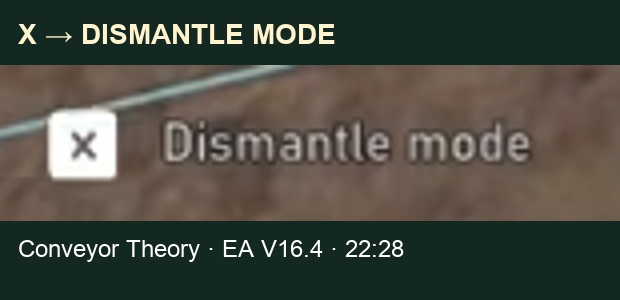
The live V16.4 bottom bar shows B for Build and X for Dismantle Mode. Open the build menu for the part you need, then return to its placement preview. Hotbar pages turn with Alt plus a number. If you lose track of a half-finished route, Esc pauses the yard.
 Open full-size image ↗
The bottom-bar X is a mode control. A clickable X inside a menu can perform a different action. Hold a preview before nudging it
In placement mode, H holds the piece in place so the arrow keys can nudge it. Adjust the preview against the intended connection, then inspect the highlighted port before confirming placement. The build hologram lights the selected port and locks when it joins. A small visual gap or a near miss is a reason to recheck the connection before extending the line.
Copy settings from the source machine to the target
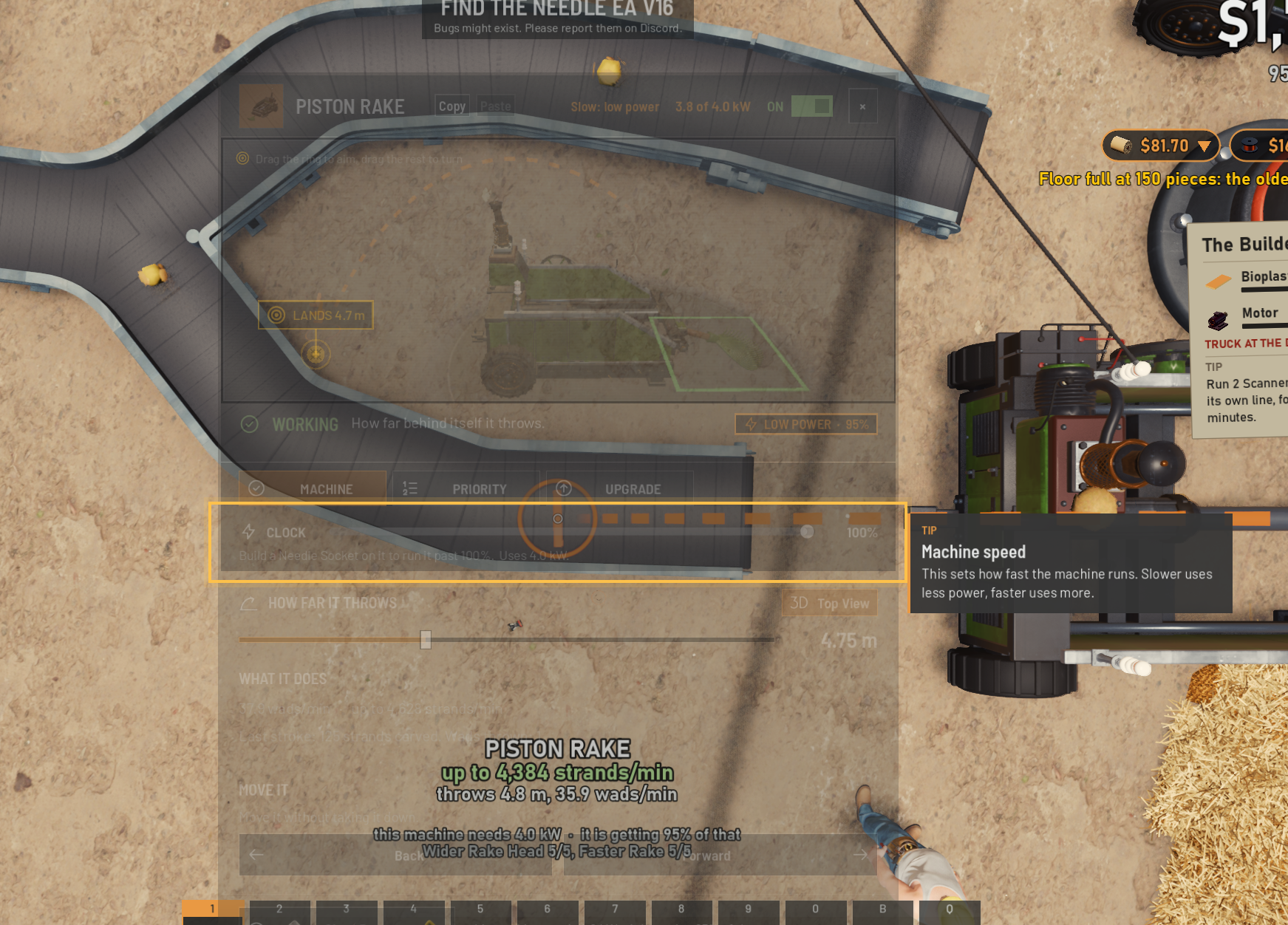
Look at the machine whose settings you want and press Ctrl+C. Look at the target machine and press Ctrl+V. The Copy and Paste buttons on the machine panel offer the same action. Open the target panel afterwards and check the settings that matter to your route, then watch an item pass through. Copying settings does not prove that the target has power, correct belts or a clear outfeed.
 Open full-size image ↗
Copy on the source machine; Paste on the target. Close view of the official V16.4 panel. Open the full-size image for its position beside the machine name. Treat R and Ctrl+Z as Dismantle Mode controls here
On V16.4, aiming at a blueprint piece and holding removes that piece. Press R when you mean to target the whole blueprint, and read the pointer’s target description before holding. Ctrl+Z works in Dismantle Mode and restores up to the last 20 things removed. For an accidental removal, stop dismantling and undo it before filling that history with newer work.
Use the key in the matching context Context Control Result Placement preview H, then arrow keys Hold and nudge the piece. Looking at a machine Ctrl+C / Ctrl+V Copy / paste machine settings. Dismantle Mode X prompt, then target and hold Remove the selected target. Blueprint in Dismantle Mode R Switch to the whole blueprint. Dismantle Mode Ctrl+Z Restore a recent removal, up to 20. Vacuum equipped H Use the vacuum hose instead of placement nudging. Hotbar Alt + number Turn hotbar pages. Yard Esc Pause. Read the object before pressing an interaction key
Interaction depends on the object. At a pipe sight glass or pump, E opens the water plate; the power-pole interaction controls its network. Use the prompt shown on the object rather than treating E as a universal machine repair. Likewise, H is the vacuum hose when the vacuum is equipped, not a placement command.
Recover the tutorial explanation from Help
The Help page keeps the tutorial cards and has a TIPS tab. Reopen the relevant card when you need the game’s explanation of a connection, machine or mode. Skipping the tutorial also turns off the glowing new-key hints on V16.4, so the absence of a glow does not mean a control was removed.
Completion check
Check the result
The intended piece is placed and connected, or the target machine has the copied settings and performs the intended action. A dismantle affects only the target named by its mode prompt.
If it still fails
If a key performs the wrong action, check the active mode, equipped tool and object prompt first. If the new piece is idle, inspect its actual connections and utilities. Use the dedicated dismantle guide for a mistaken removal.
Continue from here
Sources & version
Written for Early Access V16.4. Earlier gameplay images are labeled where used; diagrams explain connections, not exact building dimensions or measured throughput.